How to Share Available Times Instead of Sending a Scheduling URL
When a scheduling URL feels too direct, share available times by email or chat instead. Learn how Chronock helps you copy candidate times from Google Calendar availability.
Using a scheduling tool that generates a scheduling URL has become a normal part of daily work. With a scheduling URL, the other person simply chooses an open slot, so you avoid the back-and-forth of sending candidate times. With Chronock, a scheduling and calendar sync tool connected to Google Calendar, open times are detected from your linked calendars in real time, and the time your guest selects is added to your calendar automatically.
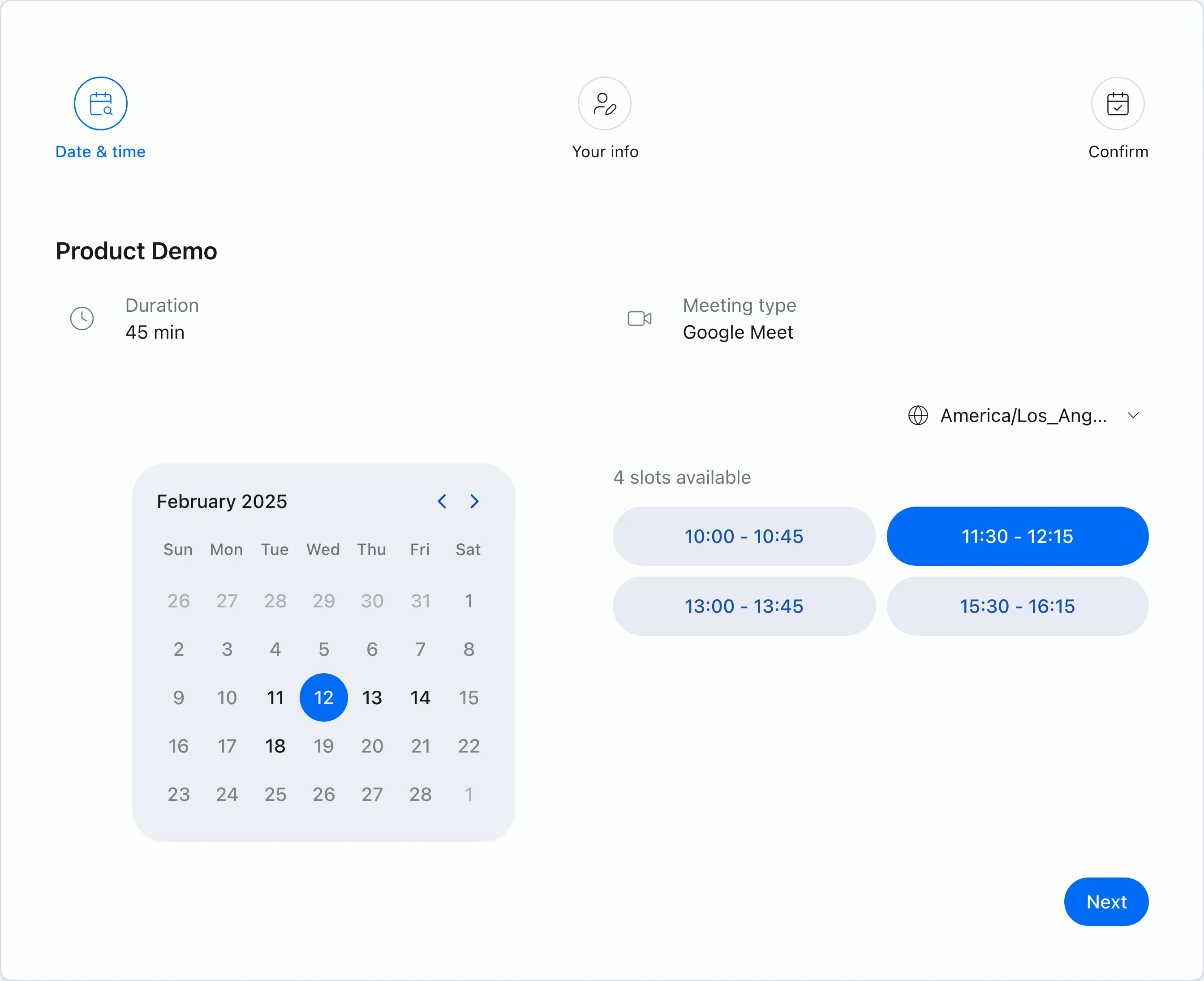 Chronock shows only bookable times based on your Google Calendar events.
Still, not every situation is right for “Please choose a time from this URL.” Depending on the relationship and how the meeting is being coordinated, a scheduling URL can be useful but feel a little too direct.
In those cases, sharing available times as text can work better. Chronock’s candidate dates tool uses your connected Google Calendar availability to create candidate times that are easy to paste into email or chat.
When a scheduling URL feels hard to send
Scheduling URLs are useful. For ongoing customers, internal teammates, or people you already work with, sending a URL is usually the fastest and clearest option.
But in situations like these, written candidate times may feel more natural:
- You are contacting a senior stakeholder, executive, or first-time prospect before the relationship is established
- A recruiter, assistant, sales rep, or another third party is coordinating on behalf of the actual participant
- Several people are involved, and you first need the other side to check candidate times internally
- You want the options to sit directly inside the email thread
For example, sending only a booking URL in a first appointment request may give the impression of “please fit into my availability.” People will read that differently, of course. But when you want to keep the tone more careful, a message like this is often easier to use:
I am available at the following times.
Please let me know which option works best for you.

- Thu, Jun 18 10:00-10:45, 14:00-14:45
- Fri, Jun 19 11:00-11:45
- Mon, Jun 22 15:00-15:45
Putting the candidate times directly in the message lets the recipient check them without opening another page. It also makes the options easier to forward when someone else needs to confirm internally.
Finding candidate times by hand gets tedious
You can share candidate times without a special tool. Open your calendar, find open slots, and type them into your email.
In practice, that work gets tedious quickly:
- You may need to compare work, personal, and team Google Calendars
- You may want buffer time before or after a meeting
- You need to carve out slots that match the meeting length, such as 30, 45, or 60 minutes
- Too many options on the same day can make the reply harder for the other person
- Another meeting may land on one of the proposed options while you are waiting for a reply
A scheduling URL handles availability checks and event creation for you. When you send candidate times as text, you often end up doing part of that work manually.
Chronock’s candidate dates tool is for the middle ground: you want to send text instead of a URL, but you still want the availability check to be automated.
What Chronock’s candidate dates tool does
Chronock’s candidate dates tool creates candidate times from your connected Google Calendars and scheduling conditions. Instead of sending a public booking URL, you copy the candidate times and paste them into email or chat.
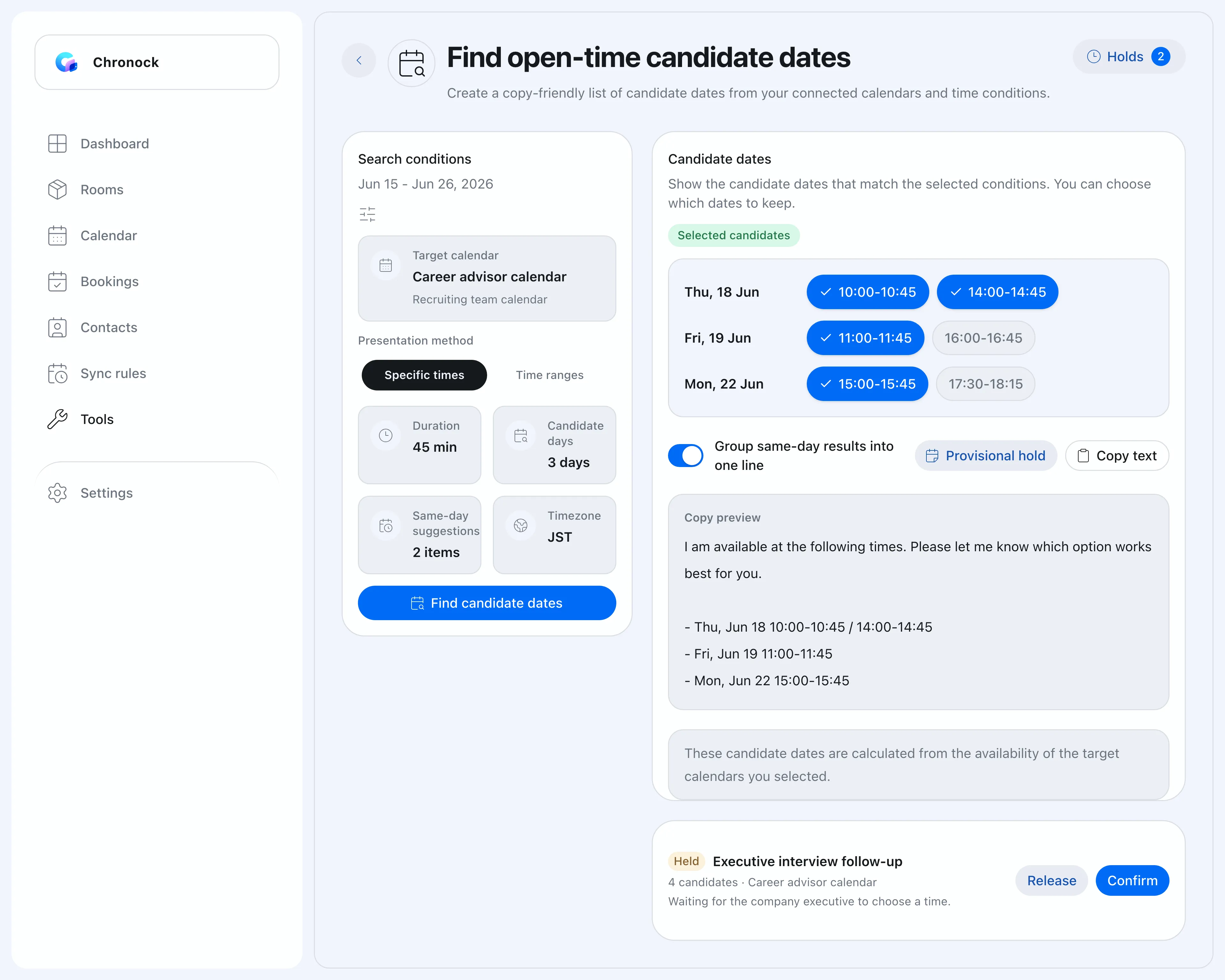 The candidate dates tool lets you choose the target calendar, date range, meeting length, and other conditions.
The main settings are:
| Setting | What it controls |
|---|---|
| Target calendar | The connected calendar used as the basis for finding availability |
| Presentation method | Whether to show specific start times or broader available time ranges |
| Date range | The period to search. The current maximum is 30 days |
| Meeting length | The duration you want to schedule, such as 30, 45, or 60 minutes |
| Candidate days and same-day suggestions | How many days to include and how many options to show per day |
| Advanced conditions | Weekdays, time windows, timezone, buffers, and holiday/off calendars |
After searching, Chronock shows the matching open times. You can remove options you do not want, group same-day results into one line, and prepare copyable text.
Choose between specific times and time ranges
The candidate dates tool supports two presentation methods.
Specific times lists concrete start and end times. For example, “Thu, Jun 18 10:00-10:45” gives the recipient options they can choose directly.
- Thu, Jun 18 10:00-10:45, 14:00-14:45
- Fri, Jun 19 11:00-11:45
- Mon, Jun 22 15:00-15:45
This works well for interviews, sales calls, 1:1s, and online meetings where the meeting length is already decided.
Time ranges show broader blocks of availability. For example, “Thu, Jun 18 10:00-12:00” lets the other side choose a time within that range.
- Thu, Jun 18 10:00-12:00
- Fri, Jun 19 14:00-16:30
- Mon, Jun 22 15:00-18:00
Time ranges are useful when the recipient needs to check with several people or decide the exact time internally.
You can hold specific candidate times while waiting for a reply
The hard part of sending candidate times as text is avoiding double bookings while you wait for a reply.
For example, you might send three options by email, then another meeting lands on one of them before the other person replies. You can manually block those options on your calendar, but that gets cumbersome as the number of candidates grows.
In Chronock, when you use the “specific times” presentation method, you can create tentative calendar events for the selected candidates. You enter a title and optional description, and you can register them as private events when needed.
Later, you can confirm one held candidate. Chronock releases the other held candidates, which reduces the chance of forgetting to delete stale tentative events after the meeting time is decided.
Calendar holds are a Pro plan feature. In the current implementation, holds are available for candidates shown as specific times. Time-range candidates are not eligible for holds.
Use scheduling URLs and text options based on the relationship
You do not need to choose only one scheduling style. Use scheduling URLs and text candidate times depending on the situation.
| Situation | Better fit |
|---|---|
| Internal meetings, existing customers, and established relationships | Scheduling URL |
| First appointments, senior stakeholders, executives, and high-touch candidates | Text candidate times |
| Coordination through recruiters, assistants, or other intermediaries | Text candidate times |
| You want the other person to choose and confirm immediately | Scheduling URL |
| The other side needs to check availability across multiple people | Text candidate times or time ranges |
Send a URL when a URL fits. When it feels too direct, use the same calendar-based availability logic to send written candidate times instead. That makes your scheduling workflow much more flexible.
Useful for recruitment and first sales appointments
The candidate dates tool is especially useful for recruitment agencies and first sales appointments.
In recruitment, candidates, client contacts, interviewers, and internal advisors often all take part in the process. When a recruiter is coordinating in the middle, it is common to send candidate times as text so the client or candidate can confirm internally.
In sales, a first meeting or referred appointment can also call for a softer approach than sending only a scheduling URL. If executives or several departments are involved on the other side, written candidate times are easier to forward and review.
Chronock supports both scheduling by booking URL and scheduling by candidate-time text. For practical examples, see these use cases:
- Scheduling for Recruitment Agencies and Search Firms
- Scheduling and booking management for sales teams
Separate copy-paste scheduling from manual calendar checks
Scheduling URLs are useful. But depending on the relationship and workflow, sharing candidate times as text can be the better choice.
The challenge is not writing the message. The challenge is checking the calendar first: finding open time, matching the meeting length, limiting the number of options, and protecting the slots while you wait for a reply. Doing that manually every time takes time and attention.
With Chronock’s candidate dates tool, you can create candidate times from Google Calendar availability, select only the options you want, and copy them into your message. Even when a scheduling URL is not the right fit, you do not need to write candidate times by hand from your calendar.
If you want to switch between scheduling URLs and text-based candidate times, try the candidate dates tool in Chronock.