How to show busy on Google Calendar and hide event details
Show busy on Google Calendar instead of event details: mark events busy or free, make events private, share as free/busy, or sync busy blocks.
When sharing your schedule, you often want people to see when you are unavailable without exposing private details like event titles, locations, notes, or guest lists. Google Calendar lets you control this at both the calendar level and the individual event level. Depending on what you need, you can share a calendar with free/busy permissions, mark specific events as private, change an event’s availability setting, or sync busy blocks directly to another calendar.
Quick answer
Use this table to find the right method for your situation:
| What you want to do | How to do it | Guide |
|---|---|---|
| Make an event block time or free up time | Set the event availability to “Busy” or “Free” | Mark an event as busy or free |
| Hide details for specific events on a shared calendar | Change the event visibility setting to “Private” | Hide specific event details |
| Share an entire calendar without details | Set calendar permission to “See only free/busy (hide details)” | Share as free/busy |
| Understand what viewers can and cannot see | Learn what the free/busy permission reveals | What “See only free/busy” means |
| Fix a shared calendar that only displays “Busy” | Check viewer permissions and event privacy settings | Why a shared calendar shows busy |
| Block personal time on a work calendar manually | Create standalone busy blocks on your destination calendar | Show busy blocks on work calendar |
| Keep busy blocks updated automatically across accounts | Use Chronock to mirror events as busy-only | Sync busy blocks with Chronock |
Mark one event as busy or free
In Google Calendar, every event has an availability setting that controls whether that time is treated as occupied. This is separate from whether the event details are visible.
- Busy: Blocks the time slot. Other people and scheduling tools see you as unavailable.
- Free: Keeps the event on your schedule for reference, but does not block the time slot. Others see you as available.
Google’s guide to availability checks explains how Busy events block appointment times when their calendar is checked for conflicts.
How to set an event to Busy or Free
- Click on the event in your calendar grid, then click the pencil icon (Edit event).
- Find the event’s Busy or Free availability setting.
- Click the drop-down menu and choose Busy or Free.
- Click Save at the top of the page.
How to remove “busy” from an event
If an event is blocking your calendar when it should not—such as a reminder, a travel itinerary note, or an optional team event—you can remove the busy status without deleting the event:
- Open the event and click the pencil icon (Edit event).
- Change the availability setting from Busy to Free.
- Click Save.
The event stays on your calendar, but it will no longer show as a busy block to colleagues or scheduling software.
Hide the details of specific events
If you already share your calendar with full details (such as with a spouse, assistant, or close team member), you may still want to hide specific sensitive entries. Google Calendar provides three visibility options for individual events: Default visibility, Public, and Private.
How to make an event private
- Click the event on your calendar and select the pencil icon (Edit event).
- Open the Default visibility drop-down menu (or the current visibility setting).
- Select Private.
- Click Save.
How event visibility interacts with calendar permissions
What another person sees depends on both your calendar’s sharing permission and the event’s visibility setting:
| Event visibility | “See only free/busy” | “See event details” | “Make changes (see private events as free/busy)” | “Make changes and see event details” or higher |
|---|---|---|---|---|
| Default visibility | Busy only | Full details | Full details | Full details |
| Private | Busy only | Busy only | Busy only (private events set to Free are hidden) | Full details |
| Public | Full details | Full details | Full details | Full details |
For full reference on event visibility rules, review the Google Calendar Help guide on event privacy settings.
Important rules for private events
- Public overrides free/busy sharing: If you mark an individual event as Public, anyone who has access to view your calendar can see the full event details, even if the calendar itself is shared as free/busy only.
- Recurring series: A recurring series has one visibility setting. Changing the visibility of one occurrence changes it for the whole series.
- Guests and conference rooms: If you invite other people or reserve rooms, the event start and end times and the event creator may still be visible on the guests’ schedules or the room’s resource schedule.
- “Make changes (see private events as free/busy)” access: Users with this permission see private busy events as busy blocks, while private free events remain hidden.
If your goal is to share a small selection of meetings rather than hiding specific ones, read our guide on how to share only specific events in Google Calendar.
Share your calendar as free/busy only
If you want someone to see your open time slots without seeing what you are doing, share your calendar using the free/busy permission.
Steps to share with specific people
- Open Google Calendar in a web browser on your computer.
- In the left panel, find the My calendars section.
- Next to the calendar you want to share, click the three-dot menu and select Settings and sharing.
- On the left, click Shared with, then click Add people and groups.
- Enter the email address of the person or Google group.
- Set the permission to See only free/busy (hide details).
- Click Send. The other person adds your calendar from the link in the email.
Steps to share with your organization or the public
You can also apply this setting across your whole organization or publicly:
- In Settings and sharing, scroll to Access permissions for events.
- Select Make available to public, or Make available for your organization.
- In the drop-down next to that setting, choose See only free/busy (hide details).
For more details on sharing settings, see the official Google Calendar Help guide on sharing your calendar.
If you use a work or school account, your administrator decides whether you can share your calendar, and with whom.
This permission works well when someone needs to check your availability before proposing a meeting. But it only lets them view your calendar. It does not put any events on their calendar or on your other accounts.
What “See only free/busy” means
The See only free/busy (hide details) setting normally shows availability without event details. Public events are an exception: their details remain visible to people who can view the calendar. Set sensitive events to Private to hide details from viewers with lower permissions.
What viewers can see
- Time blocks showing when you are unavailable.
- The label “Busy” on those time blocks.
- The exact start time and end time of each busy block.
What viewers cannot see for non-public events
- The event title (e.g., “Doctor Appointment” or “Interview”).
- The event description, notes, and attachments.
- The meeting location or video call links.
- The attendee list and guest responses.
- Events set to “Free”, which do not block time and so do not appear as busy.
Why a shared calendar only shows “busy”
If you are viewing someone else’s Google Calendar and every entry appears as “Busy” instead of showing titles and details, one of three reasons is responsible:
- The owner granted free/busy permission: The calendar owner shared their calendar with your email using the See only free/busy (hide details) permission.
- The events are marked Private: The owner may have granted you See all event details, but they explicitly marked those specific events as Private.
- Google Workspace domain restrictions: In corporate or educational environments, organization administrators often restrict calendar sharing outside the organization. An administrator can limit how much of a work calendar can be shared outside the organization.
How to fix it
The fix depends on the cause:
- Free/busy permission: Ask the owner to grant See event details if sharing those details is appropriate.
- Private events: That permission still hides private events. The owner can change the relevant event to Default visibility if its details should be shared. Do not grant calendar-editing access just to expose one event.
- External-sharing restrictions: The calendar owner’s Google Workspace administrator controls the policy. Ask the owner to check with their administrator; your own administrator cannot override another organization’s restrictions.
Show busy blocks on your work calendar
A common challenge occurs when you have multiple calendars, such as a personal Google Calendar and a work Google Calendar. You need your personal appointments, medical visits, or freelance meetings to block your work availability, but you do not want coworkers to see the details.
Why standard sharing falls short
Sharing your personal calendar with your work account lets you view both schedules side by side on your screen. However:
- Teammates who check your availability look at your work calendar, not at a personal calendar you added to your own view.
- Booking pages and scheduling tools usually check only the calendars they are connected to. Google Calendar appointment schedules can check more than one calendar only on eligible plans.
- Some companies restrict sharing between work and personal accounts.
The manual workaround
To prevent double bookings without sharing your personal calendar, you can create manual busy blocks:
- Look at your personal calendar for upcoming commitments.
- Open your work calendar.
- Create an event matching the exact start and end times of your personal commitment.
- Set the title to “Busy” or “Personal appointment”.
- Leave the description, location, and guest fields empty.
- Ensure the availability setting is set to Busy.
Drawbacks of manual busy blocks
- High maintenance: Every time a personal event is rescheduled or changed, you must manually update the work calendar block.
- Cancellation risk: If an event is cancelled and you forget to remove the manual block, your work calendar remains blocked for time you are actually free.
- Scheduling errors: Forgetting to add a block immediately leaves you vulnerable to double bookings.
For a deeper look at cross-calendar challenges, read our guide on how to sync work and personal Google Calendars to prevent double-booking.
Keep busy blocks in sync automatically with Chronock
Instead of manually copying busy blocks back and forth, you can use Chronock to keep your calendars in sync automatically while keeping event details private.
Chronock connects your calendars and creates automated sync rules between them. For each rule, you select a source calendar, a destination calendar, the sync direction, and the content level.
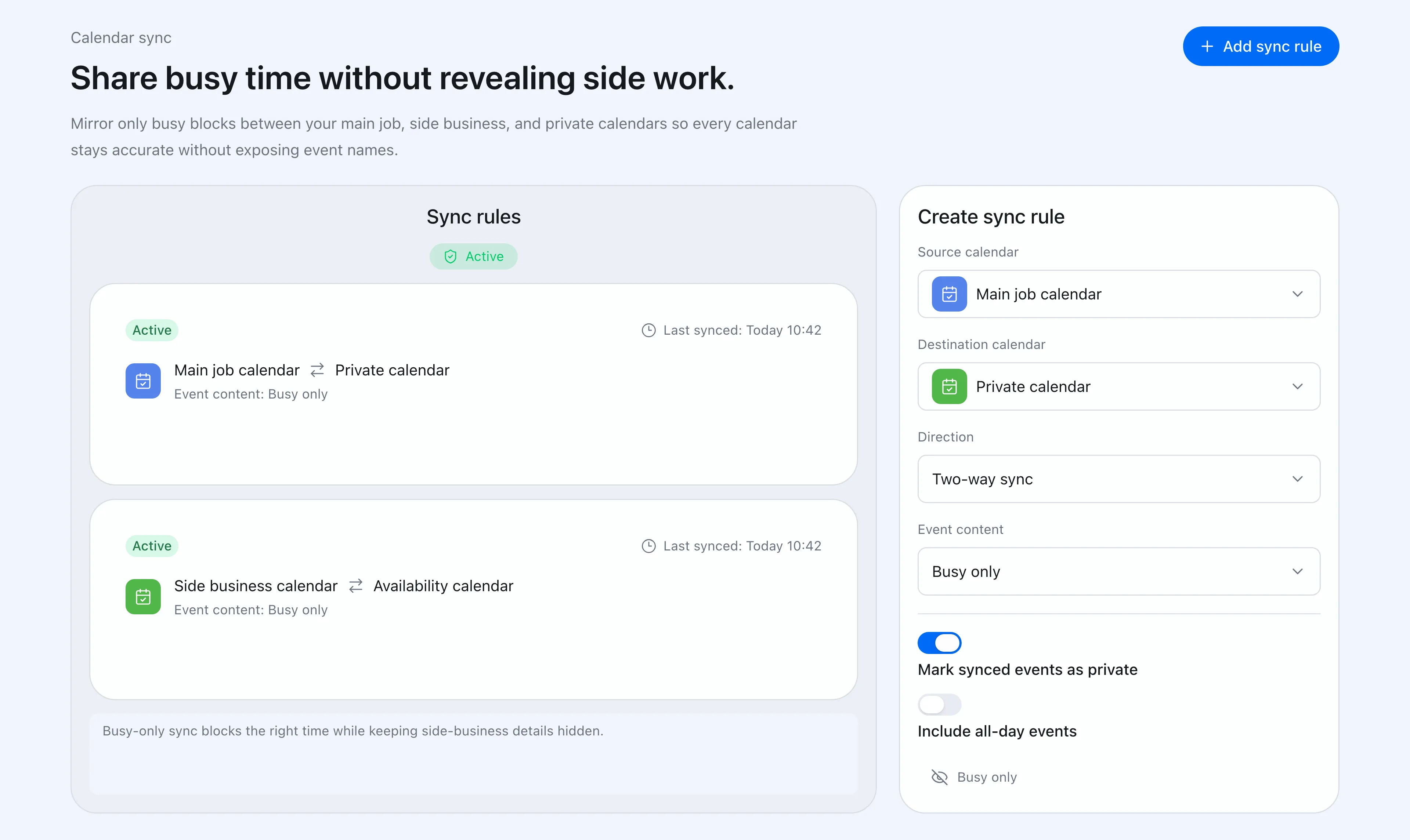 Chronock lets you define the source, destination, direction, and visibility of each sync rule.
Choose the right content level
When setting up a sync rule in Chronock, you control how much information transfers to the destination calendar:
| Content level | What appears on the destination calendar | Best suited for |
|---|---|---|
| Busy only | Title is set to “Busy”, description is empty | Personal appointments, medical visits, family events, side business |
| Title only | Original event title is preserved, description is empty | Client projects where the project title is safe to display |
| Title and description | Original event title and description | Secondary internal accounts or trusted team calendars |
Key sync features
- Private by default: Mirrored events are created as private events on the destination calendar by default.
- Automatic updates and deletions: When you move, shorten, extend, or cancel an event on the source calendar, Chronock updates or deletes the mirrored event on the destination calendar.
- Upcoming events only: Chronock syncs events from today up to 12 months ahead; past events are not copied.
- Free plan availability: The Chronock Free plan includes one one-way busy-only sync rule, supporting up to 2 connected calendars across Google Calendar and Outlook (Microsoft 365 work or school accounts).
- Pro features: The Chronock Pro plan supports multiple rules, two-way sync, and title/description content levels.
This automated approach is particularly valuable for professionals juggling multiple commitments. To see how others manage multiple schedules, see the guides on calendar sync for side businesses and scheduling for freelancers.
Frequently asked questions
What does “See only free/busy” mean?
“See only free/busy (hide details)” is a calendar permission that shows viewers when a time slot is occupied by labeling it “Busy”. For events that are not Public, it hides the title, description, location, and guest list; Free events do not appear as busy blocks. Public events can still reveal details, even with free/busy sharing. Use Private visibility for sensitive events.
Can I show busy without sharing my calendar?
Yes. You can create events titled “Busy” directly on the calendar that others check. If you want to automate this across separate accounts without sharing access to your personal calendar, you can use Chronock to mirror busy-only blocks from your personal calendar to your work calendar.
How do I remove “busy” from an event?
To stop an event from blocking your availability, open the event, click the pencil icon to edit it, change the availability setting from Busy to Free, and click Save. The event stays on your calendar, but other people and scheduling tools will see that time slot as open.
Why can someone see my event details?
For events using Default visibility, See event details permission reveals the details. Public events reveal details even to free/busy viewers. Private events hide details unless the viewer has Make changes and see event details permission or higher. On work or school accounts, administrators can have special permissions to see event details even if you don’t share your calendar.
Do private events still block my time?
Yes. If an event is marked as Private and its availability is set to Busy, it blocks your time slot. Most people who can view your calendar see a “Busy” block without details. If a private event has its availability set to Free, it will not block your time.