How to See Work and Personal Calendars Together on Your Phone (Google, Outlook, and Widgets)
See work and personal calendars together on your phone with the iPhone Calendar app, Google Calendar, or Outlook, plus what company phones restrict.
Work lives in a company Google Calendar or Outlook. Personal life lives in a personal Google Calendar. On a laptop you switch browser tabs. On a phone it gets awkward.
You want a quick look at today on the way in, but work and personal events are in two different apps. The home screen widget only shows one of them. The dentist appointment you added on your phone somehow landed on your work calendar.
This article covers the ways to see work and personal calendars together on your phone, starting with what iPhone, Google Calendar, and Outlook already do. Then it shows what the Chronock mobile app adds.
Option 1: Add several accounts to the iPhone Calendar app
The built-in Calendar app on iPhone can hold several accounts. Apple’s steps are in Set up mail, contacts, and calendar accounts on iPhone.
- Go to Settings > Apps > Calendar.
- Tap Calendar Accounts, then Add Account.
- Choose Google or Microsoft Exchange and sign in.
Add your personal Google account and your work Google account, and both sets of events appear on one screen. If your company uses Microsoft 365, add the work account through Microsoft Exchange.
Put the Calendar widget on your home screen and it shows events from all the accounts you added.
New events go to the calendar set under Settings > Apps > Calendar > Default Calendar. If that is your work calendar, personal events will land there, so check it first.
Option 2: Add several Google accounts to the Google Calendar app
The Google Calendar app for iPhone and Android also takes more than one Google account. Google’s steps are in Add another account to Google Calendar.
- Open the Google Calendar app.
- Tap your profile photo at the top right, then Add another account.
- Follow the steps to sign in.
Choose which calendars to show from the menu at the top left. If both work and personal are Google accounts, this is the easiest option. The Google Calendar app has home screen widgets too.
What it can’t do: you can’t add a Microsoft 365 account to Google Calendar. If your company runs on Outlook, work events won’t show up here.
Option 3: Add a Google account to the Outlook app
It works the other way around in the Outlook app for iPhone and Android. Microsoft’s Outlook for iOS and Android help says the app syncs mail, contacts, and calendars from Microsoft 365 and Exchange Online as well as Gmail.
- Open Outlook and tap the account menu at the top left.
- Tap the add button and add your Google account.
If your company uses Microsoft 365, adding your personal Google account to Outlook puts work and personal events in one app. Outlook has calendar widgets on both iPhone and Android.
Microsoft’s FAQ also lists shared Google calendars not showing up as a known issue. If a family calendar someone shared with you is missing, that may be why.
Where the built-in options fall short
Each option is fine for putting your own events side by side on your own phone. They struggle in three situations.
- Company phones and accounts come with restrictions. Many companies use device management (MDM) or Microsoft Intune to limit which apps can use a work account. You may be unable to add the work account to the iPhone Calendar app, or unable to add a personal account to Outlook. On Android, a work profile can keep work calendars out of reach of your personal apps.
- Events land on the wrong calendar. With several accounts in one app, new events go to the default calendar. Put a personal event on your work calendar and coworkers may see its title.
- Only you can see it. Seeing both calendars on your phone doesn’t put anything on your work calendar. When a coworker checks your availability or tries to book a meeting, that time still looks free.
The last one isn’t a display problem. It is a question of whether an event exists on your work calendar. For ways to add personal appointments to your work calendar as “Busy”, see How to Add Personal Appointments to Your Work Calendar.
See everything together in the Chronock mobile app
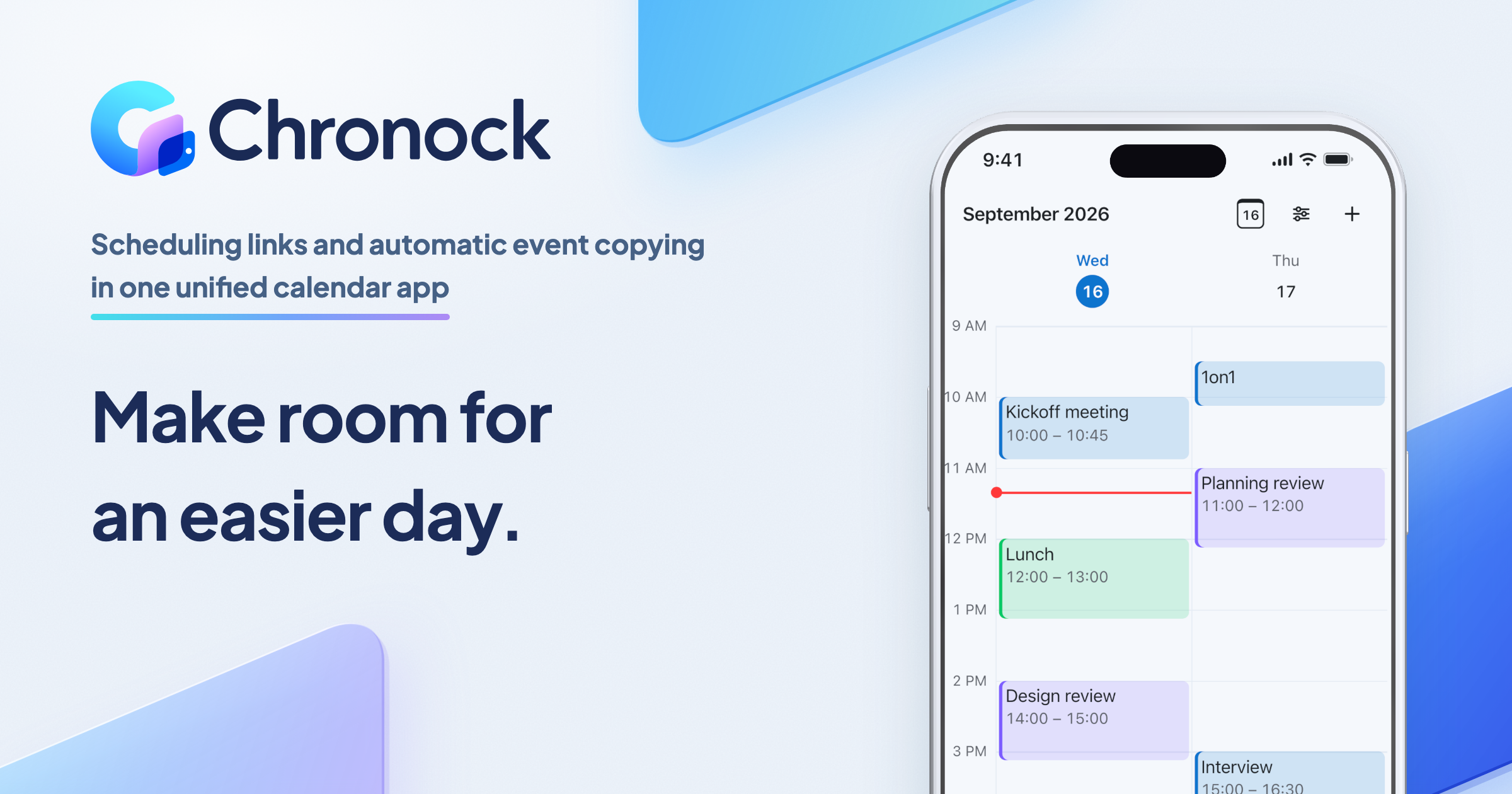
Chronock is a unified calendar app that also handles scheduling and automatic event copying. The iPhone and Android apps show several Google accounts and your Outlook (Microsoft 365) calendar together on one screen. Get it on the App Store or Google Play.
 Google Calendar and Outlook events on one screen, color-coded by calendar.
Your events still live in Google Calendar and Outlook. Chronock doesn’t replace either one; it reads and writes events on the calendars you connect.
View and create events in the integrated calendar
- Switch between day, two-day, three-day, week, and month views.
- Set a color and show or hide each calendar, and adjust the text size.
- Create and edit events in the app, and choose which calendar to save them to. They go straight into Google Calendar or Outlook.
You pick the destination calendar on the event form, so personal events go to your personal Google calendar and meetings go to your work Outlook calendar.
Check today on the home screen widget
 Today’s events from your connected calendars, without opening the app.
The widget shows today’s events from all your connected calendars. Work Outlook meetings and personal Google Calendar events sit in one widget.
View and edit offline
Events you have already loaded stay visible when you have no signal. Events you create or edit offline are saved on your device and applied when you are back online.
Booking slots and sync rules on your phone
- Booking slots: share your booking page link from your phone. The page only offers times that are free across the connected calendars you include in its availability check.
- Sync rules: check and manage automatic event copying between calendars in the app.
 A rule that copies personal Google Calendar events to a work Outlook calendar as “Busy”.
A sync rule that copies personal events to your work calendar as “Busy” fixes the “only you can see it” problem above. The copies are real events on your work calendar, so coworkers’ free/busy checks see them, and the event titles stay off the work side.
The same calendar on your laptop and your phone
The mobile app and the web app use the same account. Sync rules and booking slots you set up on your laptop are there on your phone.
 On a laptop, the same calendars in a wider week view.
Plan the week on your laptop, then check today on your phone and widget when you are out. Changes made on either one go to the connected Google or Outlook calendar. For seeing several Google accounts together on desktop, see How to View Multiple Google Calendar Accounts in One Calendar.
Download and pricing
- The app is a free download on the App Store and Google Play. All download options are on the download page.
- Sign in with Apple, Google, or an email address.
- The Free plan includes up to 2 calendar connections across Google and Outlook, one booking slot, and one one-way, busy-only sync rule.
- More connections, unlimited booking slots, two-way copying, and multiple rules are on Pro: $9 per month or $80 per year in the US, on the web or through in-app purchase, with a 7-day free trial for eligible users. In other regions, the app’s purchase screen shows the local price.
Unsupported calendars and company accounts
- The Outlook integration works with Microsoft 365 work or school accounts. Personal Microsoft accounts such as Outlook.com and Hotmail are not supported.
- iCloud Calendar is not supported. If your iPhone events live in iCloud, use the iPhone Calendar app, or move personal events to Google Calendar.
- Some companies restrict which third-party apps can connect. Connecting a company Google Workspace or Microsoft 365 account may require your admin’s approval.
Which option should you choose?
| Situation | Start with |
|---|---|
| Work and personal are both Google accounts, and only you need to see them | Several accounts in the Google Calendar app |
| You are on iPhone and want iCloud events in the same view | Several accounts in the iPhone Calendar app |
| Work runs on Outlook and your company allows the Outlook app | A Google account added to Outlook |
| You want the same unified calendar on your laptop and your phone | The Chronock mobile app |
| You want to share booking pages and check sync rules from your phone | The Chronock mobile app |
| Personal events should also block your work calendar as “Busy” | A Chronock sync rule |
If you only need your own events side by side on your own phone, start with the built-in apps. When your work calendar should reflect personal events too, or you want the same view on your laptop and phone, try Chronock. The mobile app is on the App Store and Google Play.