How to Sync Events Across Multiple Google Calendars
Learn practical ways to reflect personal, side-business, and work Google Calendar events across calendars, where Google Calendar falls short, and how Chronock automates calendar sync.
Work calendar, personal calendar, side-business calendar, client calendar. Once your schedule is split across multiple Google Calendars, it becomes easy for one calendar to look free while another one already has a commitment.
That is especially risky when your work calendar is the one your team checks. A personal appointment or side-business meeting may exist on another calendar, but if it is not reflected on your work calendar, someone can still book a meeting over it.
You may not want to expose the event title, guest list, or meeting details. You only need the work calendar to know: this time is not available.
This article walks through what you can do with Google Calendar’s built-in features, where those workarounds break down, and how Chronock can automate cross-calendar event sync with flexible privacy controls.
First, clarify what “sync” means
When people say they want to sync multiple Google Calendars, they often mean one of three different things.
| Goal | Example | How well Google Calendar handles it |
|---|---|---|
| Show another calendar in the same view | See your personal calendar while logged into your work account | Fairly easy |
| Use another calendar for availability | Hide booking slots that overlap with personal events | Possible with plan and setup limits |
| Create copied events on another calendar | Put a “busy” block on your work calendar for each personal event | Mostly manual |
If you only need to avoid missing events in your own calendar view, sharing or subscribing to another calendar may be enough.
If your team, company scheduling flow, or internal booking system only looks at your work calendar, viewing another calendar is not enough. In that case, the event needs to be represented on the work calendar itself.
Method 1: Share your personal calendar with your work account
The simplest approach is to share your personal Google Calendar with your work Google account, then display it from the work account.
The basic flow is:
- Open Google Calendar from your personal account
- Open “Settings and sharing” for the calendar you want to share
- Add your work email under the sharing settings
- Choose either “See only free/busy” or full event detail visibility
- Accept the shared calendar from your work account
Google’s help article on sharing your calendar explains the permission levels. With free/busy visibility, the other account can see that time is blocked without seeing the event title or details.
This works well when the goal is personal awareness. Changes to the original event appear on the shared calendar view, so you do not need to copy the event every time.
But this is still a display setup. It does not create an event on your work calendar. That matters when:
- Teammates only check your work calendar
- A company scheduling tool only checks the work calendar
- Admin settings restrict external calendar sharing or display
- You do not want to add the personal calendar itself to your work account
Sharing helps you avoid missing your own events. It does not always block your work calendar for everyone else.
Method 2: Include multiple calendars in appointment schedule availability
If the double-booking risk comes from Google Calendar appointment schedules, you can add more calendars to the availability check.
Google’s help article on checking availability across multiple calendars explains that calendars you own, manage, or subscribe to can be used to detect conflicts. If a checked calendar has a busy event, that time is not shown as bookable.
The setup is roughly:
- Share or subscribe to the personal calendar from the work account
- Open the appointment schedule in Google Calendar
- Edit the schedule and open the calendar settings
- Select the calendars to check for conflicts
- Save the appointment schedule
This is useful when the booking page is the main way people reserve your time. Guests never see the contents of your personal events, but those events can still remove overlapping slots from the booking page.
There are two important limits. First, Google’s help article on appointment schedule premium features says checking availability from secondary calendars requires an eligible Google Workspace or Google One plan.
Second, this only affects the booking page. It still does not create a busy block on your work calendar. If coworkers schedule meetings by looking directly at your work calendar, a conflict can still slip through.
Method 3: Copy events by hand
Google Calendar lets you copy an event to another calendar. Google’s help article on transferring calendars or events describes the basic copy flow.
For a privacy-conscious workaround, you can:
- Open the personal event
- Copy it to the work calendar
- Rename the copied event to “Busy” or “Private”
- Remove the description, location, guests, and other details if needed
- Save it as a private event on the work calendar
This can work for a handful of important events. It gives your work calendar an actual busy block while hiding the original details.
The problem is maintenance. A copied event is separate from the source event. If the source time changes, the copied event does not update automatically. If the source event is cancelled, the copied busy block can stay behind. The more calendars you manage, the easier it is to miss one of those updates.
Method 4: Export and import events in bulk
For a one-time move, you can export a calendar and import it into another account. Google’s help article on importing events into Google Calendar covers importing .ics or .csv files.
This is useful for migrations: for example, moving events from an old account to a new one.
It is not a good ongoing double-booking prevention strategy. Imported events are not connected to the originals. After import, updates in the source calendar do not sync into the destination calendar.
Which Google Calendar workaround should you choose?
With built-in Google Calendar features, the best choice depends on the job.
| Goal | Best workaround |
|---|---|
| See personal events while using your work account | Share or subscribe to the personal calendar |
| Block booking-page slots that overlap with personal events | Add the calendar to the appointment schedule availability check |
| Reflect a few events on the work calendar | Copy those events by hand and strip the details |
| Move events once | Export and import |
Each method has a place. They get harder when you need all of this at once:
- Automatically reflect personal or side-business events on a work calendar
- Keep the destination updated when the source changes or is cancelled
- Show only “busy” on one destination, but show titles on another
- Maintain different one-way or two-way rules between calendars
- Avoid manual copy, rename, and cleanup work
At that point, you are no longer just displaying calendars together. You need rule-based calendar-to-calendar sync.
Chronock automates event sync and privacy controls
Chronock is a scheduling and calendar sync tool for Google Calendar. It can automatically sync events between connected Google Calendars, so personal, side-business, and work calendars can stay aligned without manual copy work.
For example, you can reflect events from a private personal calendar onto a work calendar. In a sync rule, you choose the source calendar, destination calendar, and whether the rule should be one-way or two-way.
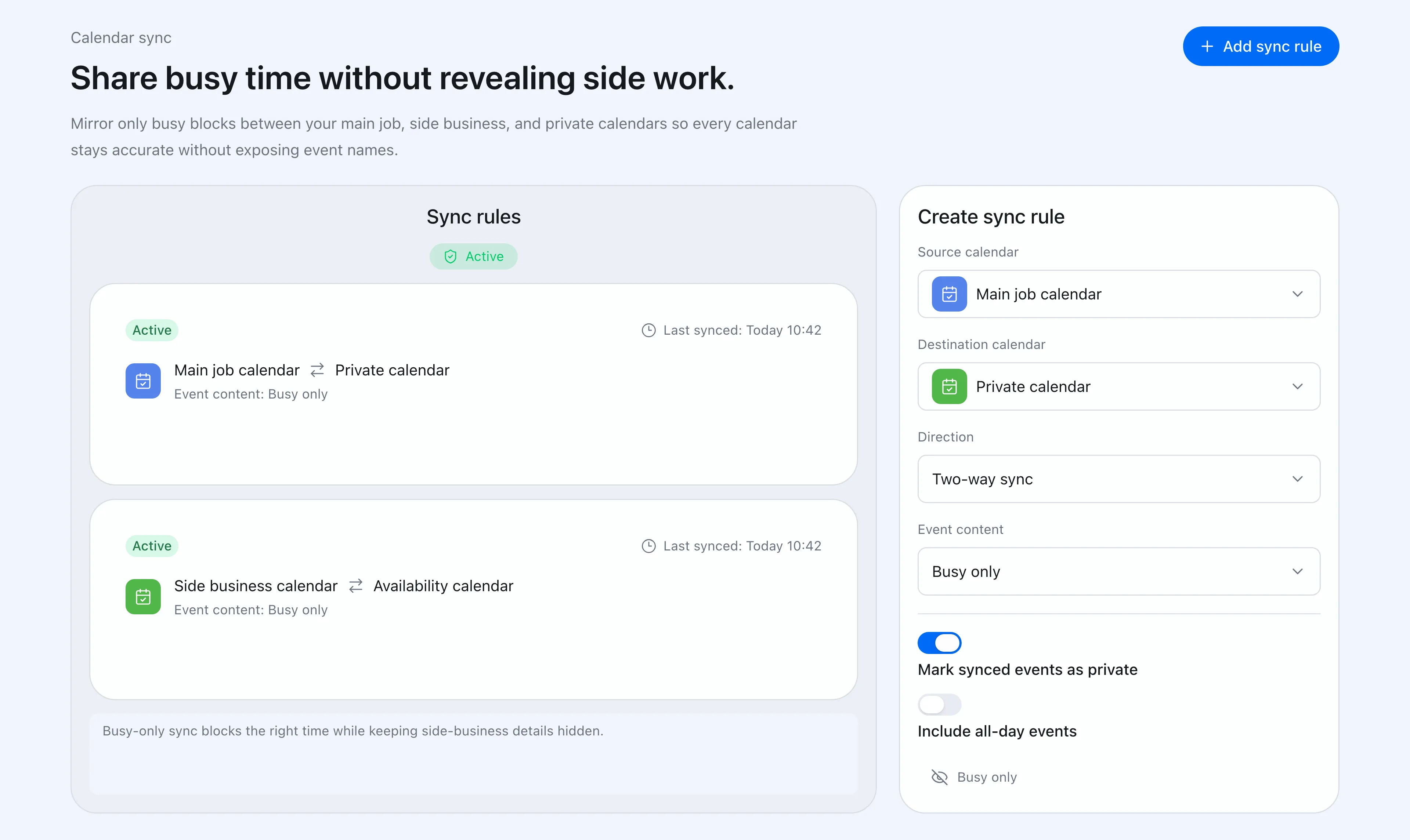 Chronock lets you choose the source calendar, destination calendar, sync direction, and how much event information appears on the destination.
You also choose how much information the destination calendar receives:
- Busy only: create a blocked event such as “Busy” without copying the title or description
- Title only: copy the event title but omit the description
- Title and description: copy more of the original event content when that is appropriate
For a side-business meeting, “Busy only” is usually enough. Your work calendar gets the blocked time, but the client name, project name, and meeting details stay off the work calendar.
For a project or client calendar, copying the title may be more useful. Chronock lets you choose the visibility level per sync rule, so one destination can receive only busy blocks while another receives more context.
When the source event changes, Chronock keeps the synced event up to date. When the source event is cancelled, the mirrored event is cleaned up too. That removes the fragile parts of a hand-copy workflow: remembering to update, rename, and delete copied events yourself.
A better fit for side businesses and multi-calendar work
Side-business and freelance schedules often cannot live in one calendar. You may not want side-business details on a company account. You may not want work meeting titles on a private or client-facing calendar. But every calendar still needs to know when you are unavailable.
Chronock’s calendar sync lets you share availability without revealing more than necessary.
For concrete examples, see these use cases:
Availability detection across multiple Google Calendars is available on the Free plan, which also includes one one-way, busy-only calendar sync rule. Multiple rules, two-way sync, and title or description visibility are available on Pro, which includes a 7-day free trial. Free supports up to 2 connected calendars in total across Google and Outlook; Pro supports unlimited connections.
If copying events by hand has become part of your calendar routine, it is time to turn that routine into a rule. Decide what should sync, where it should appear, and how much detail each destination should see. Chronock handles the rest.