How to automatically copy events from one Google Calendar to another
Google Calendar copies one event at a time, never automatically. Compare manual copy, import, Apps Script, and sync tools that keep a busy-only copy up to date.
Sometimes you need Google Calendar events to appear on another calendar too.
For example, you may want personal appointments to block your work calendar, side-business meetings to appear as busy on your main calendar, or project calendar events to show up on your primary calendar.
Google Calendar supports manual copying and one-time imports. But if you need ongoing automatic copying, the standard features are usually not enough.
This article compares copying, moving, importing, automation, and syncing events between Google Calendars.
Separate copy, move, import, and sync
Start by naming the job clearly.
| Goal | Meaning |
|---|---|
| Copy | Keep the source event and create a similar event on another calendar |
| Move | Transfer the event from one calendar to another |
| Import | Add many events from a file |
| Sync | Keep destination events updated when source events are created, changed, or deleted |
When people say they want to auto-copy events, they often need sync.
One-time copying is easy enough. Keeping future changes aligned is the hard part.
Method 1: Manually copy events in Google Calendar
For a small number of events, Google Calendar’s manual copy feature is enough.
Google’s help article on transferring calendars or events explains how to move or copy events to another calendar.
The flow is:
- Open the event.
- Choose the option to copy it to another calendar.
- Select the destination calendar.
- Edit the title, description, guests, and visibility if needed.
- Save the copied event.
If you want to hide details, change the copied event title to “Busy” or “Private” and remove the description and location.
This works for a few events. It does not work well for ongoing double-booking prevention because copied events are separate from the source. If the source changes or is cancelled, the copy does not automatically update.
Method 2: Export and import a calendar
For a one-time migration, you can export a calendar and import it into another account.
Google’s help article on importing events into Google Calendar explains how to import .ics and .csv files.
This is useful for:
- Moving old events to a new account.
- Archiving past events.
- Importing a project calendar once.
- Loading events exported from another system.
It is not sync. Google’s help notes that imported events do not keep syncing between accounts. Changes to the original calendar after import are not reflected in the destination calendar.
Guest lists and conference information may also not carry over in the way you expect. Treat import as a migration tool, not an ongoing double-booking solution.
If your goal is a safety copy of your calendar rather than day-to-day time blocking, see How to back up Google Calendar automatically.
Method 3: Use Apps Script or the Calendar API
With Google Apps Script or the Google Calendar API, you can build an automation that copies events to another calendar.
A typical implementation needs to:
- Fetch events from the source calendar on a schedule.
- Detect events that have not been copied yet.
- Create matching events on the destination calendar.
- Store the relationship between source and destination events.
- Update or delete destination events when source events change.
This is possible, but the maintenance details matter.
- Authentication and permissions need to be managed.
- Recurring events, all-day events, and time zones are easy to mishandle.
- Changes and deletions need reliable tracking.
- You need rules for manual edits on the destination calendar.
- Execution limits and failures need recovery behavior.
- Copying too much detail can expose private information.
If your team can maintain the automation and the requirements are special, this can work. For simple scheduling and calendar blocking, it is often more maintenance than expected.
Method 4: Use a calendar sync tool
If destination events must follow source event creation, changes, and deletions, a calendar sync tool is usually the more practical option.
Check these points before choosing one:
| Check | Why it matters |
|---|---|
| One-way and two-way sync | Prevents events from flowing in the wrong direction |
| Destination visibility controls | Avoids exposing titles or notes unnecessarily |
| Change and deletion tracking | Prevents stale busy blocks |
| Recurring and all-day event handling | These cases often cause mismatches |
| Pause and resume controls | Useful when projects or policies change |
| Calendar-specific rules | Lets work, personal, and project calendars behave differently |
The most important point is visibility. If your purpose is to prevent double bookings, the destination calendar usually does not need the full event details.
Busy-only sync is often safer than full copying.
Chronock supports busy-only automatic sync
Chronock includes Google Calendar sync rules.
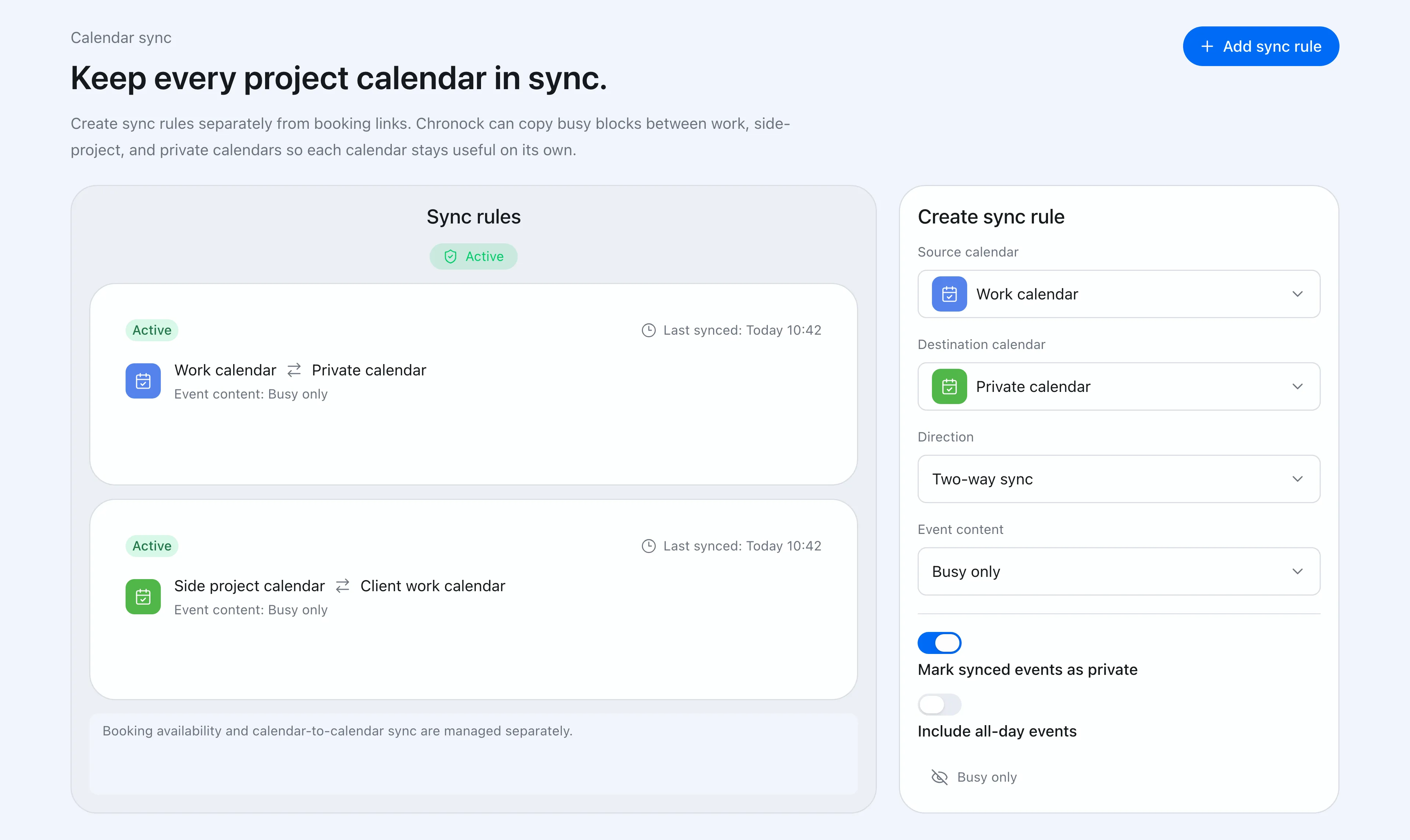 Chronock lets you create and manage calendar sync rules from the app.
A sync rule defines the source calendar, destination calendar, direction, and destination visibility.
Example uses:
- Sync personal events to a work calendar as busy-only.
- Sync side-business meetings to the main job calendar without exposing titles.
- Sync project events to a primary calendar with title-only visibility.
- Sync only in the direction you actually need.
Because destination visibility is configurable, sensitive calendars can use busy-only events.
Chronock is designed to follow source event changes and deletions, so you do not have to manually clean up copied blocks after a meeting moves or gets cancelled.
When is manual copying enough?
| Situation | Best fit |
|---|---|
| You only need to copy a few events | Manual copy |
| You are migrating an old calendar once | Export and import |
| You have special internal requirements | Apps Script or API automation |
| You need ongoing event reflection | Calendar sync tool |
| You want to hide details and block time only | Busy-only sync |
If Google Calendar’s standard features are enough, use them. But if you need the destination calendar to stay correct every week, manual copying becomes the source of mistakes.
When the real goal is double-booking prevention, design the workflow as sync rather than copy.
The Free plan includes one one-way, busy-only calendar sync rule. Multiple rules, two-way sync, and title or description visibility are available on Pro (7-day free trial). Multi-calendar availability detection is also available from the Free plan. Free supports up to 2 connected calendars in total across Google and Outlook; Pro supports unlimited connections.