How to back up Google Calendar automatically
Compare ways to back up Google Calendar: manual exports, scheduled Google Takeout archives, and syncing to a second calendar, plus what each one protects.
Your Google Calendar quietly becomes one of your most important records: client meetings, project history, personal commitments. Losing it hurts — yet most people have no backup at all.
The risks are real, if unglamorous. An event deleted by accident. A misbehaving third-party app that wipes or rewrites entries. A Google Workspace account that disappears when you leave a job or a contract ends. A personal account you get locked out of.
This article compares the practical ways to back up Google Calendar — including how to make backups run automatically — and is honest about what each method does and does not protect against.
First, know what Google already gives you
One built-in safety net is worth knowing before you build anything, along with its limits.
The calendar trash. Deleted events go to a per-calendar trash and can be restored for about 30 days. Google’s help page on restoring deleted events explains the flow. After 30 days, they are gone for good.
What the trash does not cover. When you delete a recurring event with “This and following events”, the deleted events skip the trash and cannot be restored, according to Google’s help page on deleting events. The trash is also only available in Google Calendar on the web.
The trash is a recovery tool, not a backup. It lives inside the same account you are trying to protect.
Method 1: Manual export (simple, but easy to forget)
Google Calendar can export all your calendars from Settings → Import & export. You get a ZIP of .ics files, one per calendar, which any calendar app can re-import later.
Google’s help article on exporting your calendar covers the steps.
This is a perfectly good backup — on the day you make it. The weakness is the “you” part: manual exports happen enthusiastically once, then never again. If your last export is from March, your backup is from March.
Method 2: Scheduled exports with Google Takeout
Google Takeout exports your calendar data (again as .ics files) and, crucially, can do it on a schedule: an export every two months for one year, delivered to Google Drive, Dropbox, OneDrive, or Box.
Setup takes a few minutes:
- Open Google Takeout and select only Calendar.
- Choose the delivery destination and file type.
- Select the scheduled option (an export every 2 months for 1 year).
Two honest caveats:
- The schedule expires after one year, and Google does not renew it for you. Put a yearly reminder in your calendar to re-create it.
- A backup stored in the same Google account protects you from deletion mistakes but not from losing the account. Deliver to Dropbox or OneDrive, or move the files out, if account loss is what worries you.
For most individuals, scheduled Takeout exports to an external destination are the best effort-to-protection ratio available.
Method 3: Sync events to a second calendar or account
A different strategy: continuously mirror your events to a calendar in another account using a calendar sync tool. The mirror follows source changes while both calendars remain connected. Its retention depends on the sync tool, so a second account alone does not guarantee that copies survive loss of the source account.
This is useful while you work across several accounts: a sync rule that mirrors work events to a calendar you control keeps your upcoming commitments visible there. Check your company’s policy first: copying work calendar data to a personal account may not be allowed.
Do not rely on sync when you leave a company. Chronock copies upcoming events only, not your past history; other sync tools have their own time windows. And if the work calendar is disconnected, the copies created from it can be removed too. If you need a record, export it (and only where your company allows it) before your access ends.
One thing must be said clearly, because backup articles often gloss over it: sync is not a point-in-time backup. A sync tool’s job is to keep the destination matching the source — which means deletions propagate too. If you delete an event by accident, the mirror deletes it as well. Sync is useful for day-to-day availability. For recovery from data mistakes or account loss, keep independent exports outside the source account.
Method 4: Apps Script for custom schedules
For the technically inclined, a small Google Apps Script can fetch your calendars’ ICS feeds or use the Calendar API on a timed trigger and write dated snapshot files to Google Drive — giving you true point-in-time backups at whatever frequency you like.
It works, but you own the maintenance: authentication scopes, execution limits, and the script silently failing some month. If you would not notice a broken cron job, prefer Takeout’s managed schedule.
What protects against what
| Risk | Best protection |
|---|---|
| Accidentally deleted an event (noticed quickly) | Calendar trash (30 days) |
| Accidentally deleted or corrupted data (noticed late) | Scheduled Takeout exports, Apps Script snapshots |
| Losing access to the account (offboarding, lockout) | Independent exports stored outside the account before access ends |
| Third-party app rewrote your calendar | Point-in-time exports |
| Need working calendar continuity, not just an archive | Sync to a second calendar |
A reasonable personal setup is two layers: scheduled Takeout exports to an external destination for point-in-time recovery, plus an optional sync rule for day-to-day availability while both accounts remain connected.
Chronock keeps a live mirror on a second calendar
Chronock is an integrated calendar app with scheduling links and automatic event copying for Google Calendar and Outlook (Microsoft 365). Its sync rules can continuously mirror events from one calendar to another — including calendars on different Google accounts.
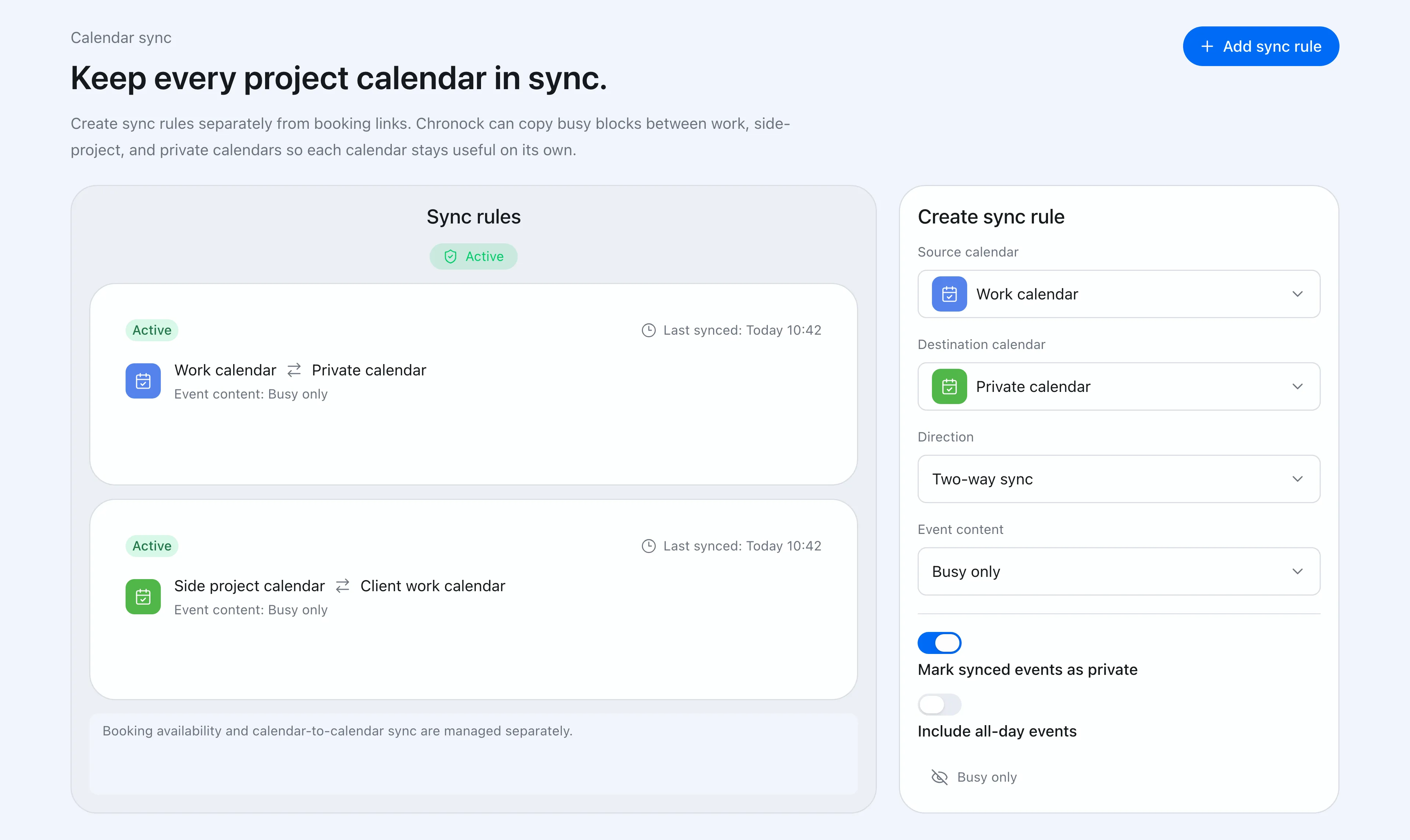 Chronock lets you create and manage calendar sync rules from the app.
For day-to-day scheduling across accounts:
- Sync your work calendar to a personal calendar so upcoming commitments also appear on a calendar you control (if your company allows it).
- Choose what the mirror shows: busy-only blocks for privacy, or event titles and descriptions (Pro) when the mirror should be a usable copy.
- Sync follows changes and deletions, so the mirror is always the current truth — pair it with scheduled exports for point-in-time history.
- Chronock copies upcoming events, from today up to 12 months ahead. It does not copy your past history.
- If you delete the sync rule or disconnect either calendar from Chronock, Chronock removes the copies it created. Export first if you need to keep them.
Chronock is a sync tool, not an archive service, and we would rather say that plainly: use it for live continuity across accounts and for preventing double bookings, and let Takeout handle the snapshots.
The Free plan includes one one-way, busy-only sync rule. Multiple rules, two-way sync, and title or description visibility are available on Pro (7-day free trial).