Notion Calendar vs Chronock: Alternative for Client Work
Notion Calendar vs Chronock for freelancers and consultants: calendars, busy blocking, scheduling links, booking pages, apps, and pricing compared (2026).
Notion Calendar and Chronock both put several calendar accounts in one view, both can block busy time across calendars, and both have scheduling links. On paper they look close. In practice they are built for different kinds of work.
Notion Calendar is a free, polished calendar app that connects your schedule to your Notion workspace. Chronock is a unified calendar built around client scheduling: booking pages, candidate times, holds, and rules that copy busy time between Google and Microsoft 365 calendars.
This comparison is written for freelancers, consultants, and coaches who juggle a personal calendar, their own business calendar, and one or more client accounts. It is published on Chronock’s own blog, so fairness matters. Notion Calendar information below is current as of October 2026, based on Notion’s product page, pricing page, and help center. Check the latest pages before deciding.
Short answer
Choose Notion Calendar if you want a free calendar app with native apps for Mac, Windows, iPhone, and Android, iCloud support, and your Notion databases on the calendar. Its auto-blocking and scheduling links cover simple needs well.
Choose Chronock if clients book time with you and your calendars are on Google and Microsoft 365. Chronock adds booking pages that check the calendars you include in availability checks, sync rules that copy busy time one-way or two-way, candidate-times text for email, and, on Pro, holds and a CRM for bookings and contacts.
| Choose | Best fit |
|---|---|
| Notion Calendar | You live in Notion, use iCloud, want a free app on every platform, and mainly need to see your calendars together. |
| Chronock | You run client sessions or meetings across Google and Microsoft 365 calendars and want bookings, busy copies, and follow-up in one place. |
Comparison table
| Area | Notion Calendar | Chronock |
|---|---|---|
| Price | Included in Notion’s Free plan | Free plan; Pro $9/user/month or $80/year, 7-day trial |
| Calendars | Google Calendar, Outlook, iCloud | Google (several accounts), Outlook on Microsoft 365 work or school accounts. No iCloud or Outlook.com |
| Apps | Web, Mac (macOS 11+), Windows, iOS, Android, with home and lock screen widgets | Web, Android on Google Play, and a Mac app for Apple Silicon (macOS 14+) |
| Calendar views | Desktop and web views include week and month. Mobile is limited to 1, 2, or 3-day views | Day, 2-day, 3-day, week, and month |
| Blocking across calendars | Block a single event or auto-block all events from a calendar, with details or “Show as busy”. Set up on desktop or web | Sync rules, one-way or two-way, including across Google and Outlook. Copy busy status only, title, or title and description |
| Scheduling links | Recurring and one-off links with a custom URL, expiry, location, video link, phone number, booking window, and description. “Avoid conflicts” hides times that clash with your events. Invitees can reschedule or cancel; rescheduling is unavailable on single-use links | Booking pages that check the calendars you include in availability checks. Booking slots grouped into rooms, group scheduling (Pro), and daily booking limits |
| Proposing times in email | Share availability with one-off or recurring links; the help page also references calendar holds | Candidate-times text to paste into email or chat. Pro adds holds on those times |
| After the booking | Not described in the help pages we checked | Bookings and contacts in a CRM (Pro), plus webhooks |
| Notion integration | Notion databases and pages on the calendar | None |
| Languages | 12 languages, including English and Japanese | 6 languages, including English and Japanese |
Where Notion Calendar is strong
It is free. Notion’s pricing page lists Notion Calendar in the Free plan. For a free app, it covers a lot.
It runs everywhere. Notion’s apps help page lists web, Mac, Windows, iOS, and Android, plus home screen widgets on iOS 14+ and Android 8+ and lock screen widgets on iOS 16+. If you check your schedule on your phone between sessions, this matters.
It supports iCloud. The product page says Notion Calendar works with Google Calendar accounts, Outlook calendars, and iCloud calendars. Chronock does not support iCloud.
It connects to Notion. You can show dated items from Notion databases on the calendar, drag them to update the database, and link Notion pages to events. If your client projects and session notes live in Notion, no other calendar does this as directly.
It can block busy time across calendars. Notion’s blocking help page describes right-clicking an event, choosing “Block on calendar”, and picking “This event” or “All events from” a calendar to auto-block future events. You choose “Include details” or “Show as busy”. That covers the classic setup: personal appointments show as busy on your work calendar.
Scheduling links are built in. Notion’s scheduling help page describes recurring and one-off links with a custom URL, an expiration date, locations, video and phone details, a booking window, and a description. With “Avoid conflicts” on, the link hides times that clash with your events.
What to watch with Notion Calendar
- Mobile is lighter than desktop. The apps help page lists what you can’t do on mobile, including creating scheduling snippets, editing most events unless you created them on iOS as the organizer, and switching to week or month view. Sharing availability is described for desktop and web.
- Scheduling links are simple. The help pages we checked describe availability, location, conferencing, a booking window, and reschedule or cancel links, and they reference calendar holds. We did not find booking forms with custom questions, daily booking limits, or a record of past bookings and contacts.
- Blocking is set up per calendar from the event menu. It works well for one or two pairs of calendars. We did not find options to copy only event titles or to choose separate visibility levels per direction beyond “Include details” or “Show as busy”.
Where Chronock is strong
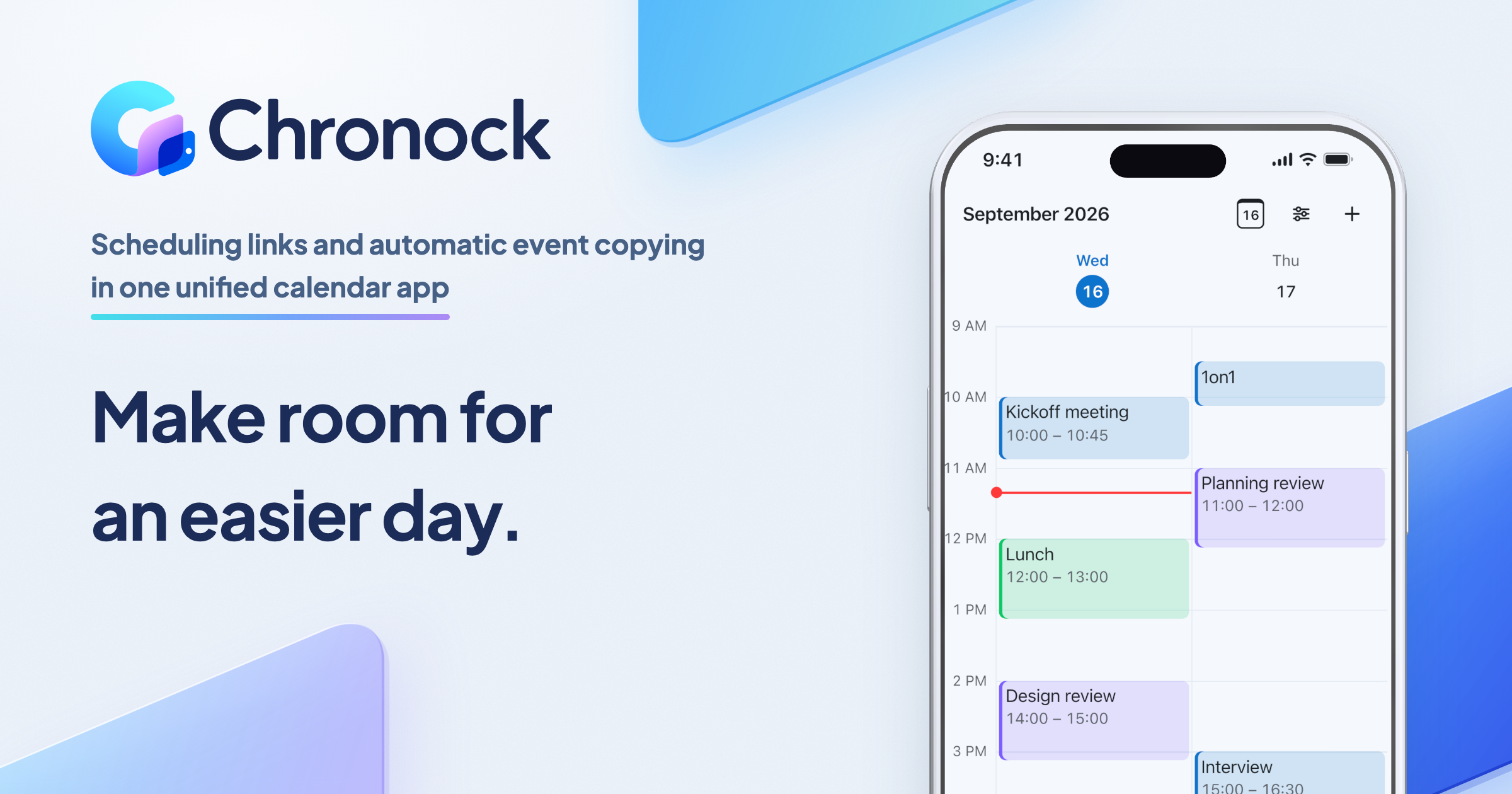
Chronock is a unified calendar with scheduling and automatic event copying, built around Google Calendar and Outlook on Microsoft 365. It does not replace either one. Your events stay in Google and Outlook, and Chronock reads and writes them there.
One view, with copies hidden
The integrated calendar shows several Google accounts and Microsoft 365 Outlook calendars together. You can create, edit, and delete events in connected Google and Outlook calendars and choose which calendar each new event is saved to. A “Show copied events” switch hides Chronock’s own copies so the same appointment does not appear twice.
 Busy copies appear with a dashed outline. Turn off “Show copied events” to hide them.
Booking pages that check the calendars you choose
Booking pages check the calendars you include in availability checks before offering a time, so a client cannot book over another session, a meeting in a client’s Microsoft 365 account, or a personal appointment. You can exclude a calendar from availability checks. Booking slots can be grouped into rooms, with group scheduling and daily booking limits.
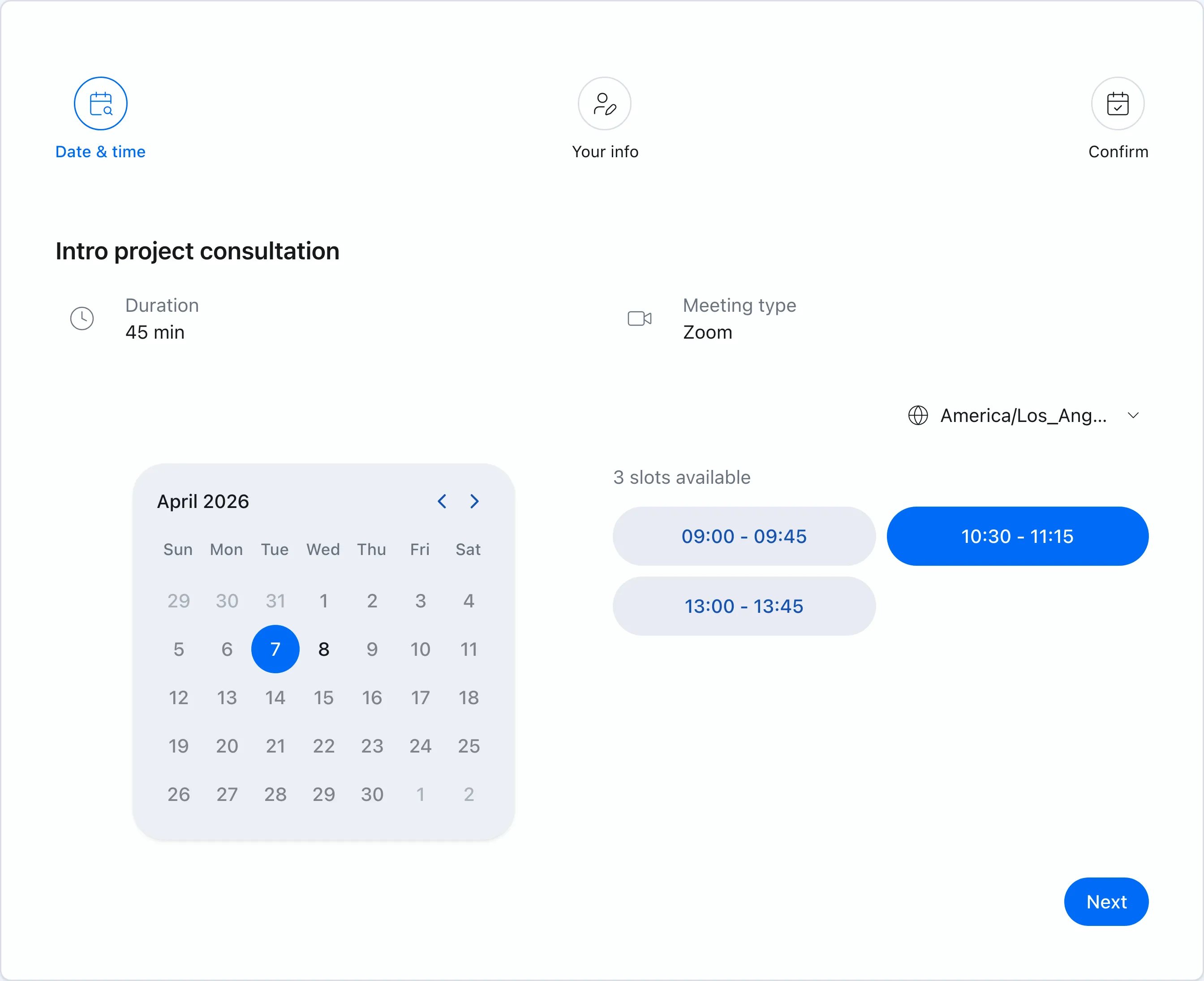 A client books an intro call. Only times that are free in the calendars you include appear.
Candidate times, holds, and a CRM
Some clients would rather pick from a short list in an email than open a link. Chronock turns open times into candidate-times text you paste into an email or chat. On Pro, holds protect those times while you wait, with a default 24-hour expiry. Bookings and contacts are kept in a CRM on Pro, and webhooks send booking events to other tools. More on this approach: When to send candidate times instead of a scheduling link.
Busy copies between Google and Microsoft 365
Sync rules copy events one-way or two-way, between Google calendars, between Outlook calendars, or across the two. You choose whether the copy shows busy status only, the title, or the title and description, and you can mark copies private. A busy-only copy is a real event titled “Busy” in the destination calendar, so a client’s or coworker’s free/busy lookup sees it. Copies update or disappear when the original changes.
For consultants working inside a client’s Microsoft 365 tenant, this is often the deciding feature: your own Google calendar can block time in the client’s Outlook calendar without showing what the appointment is.
What to watch with Chronock
- No iCloud. If your personal calendar is on iCloud, Notion Calendar supports it and Chronock does not.
- Microsoft 365 work or school accounts only. Personal Microsoft accounts (Outlook.com, Hotmail) are not supported.
- One calendar per connected account. Chronock uses the primary calendar of each connected Google or Microsoft 365 account. Other calendars inside the same account are not imported.
- Platform coverage. Chronock offers web, Android, and Mac for Apple Silicon. Its download page does not list an iOS or Windows app. Notion Calendar offers both.
- Some events are view-only. Events you were invited to, bookings, and Chronock’s own copies can’t be edited from the integrated calendar.
- No Notion integration. Chronock does not show Notion databases on the calendar.
- The free plan has limits. Chronock Free includes 2 calendar connections, 1 active booking slot, and one one-way, busy-only sync rule. More calendars, two-way rules, and holds need Pro.
- Company accounts may need admin approval. Google Workspace and Microsoft 365 admins can restrict third-party apps.
Pricing
Notion Calendar is included in Notion’s Free plan.
Chronock Free includes up to 2 calendar connections across Google and Outlook, 1 active booking slot with a shareable booking page, availability checks, Zoom and Slack integrations, and one one-way, busy-only sync rule. Chronock Pro is $9/user/month, or $80/year, and adds unlimited connections and rules, two-way sync, copying titles and descriptions, unlimited booking slots, group scheduling, holds, and the CRM. Pro has a 7-day free trial.
If you only need to see calendars and block busy time, Notion Calendar costs nothing. Chronock Pro makes sense when bookings and client follow-up are part of your work.
Who should choose which
| Situation | Easier choice |
|---|---|
| You want a free calendar app and mostly need to see everything in one place | Notion Calendar |
| Your personal calendar is on iCloud | Notion Calendar |
| You use an iPhone and want a native calendar app | Notion Calendar |
| Your projects and notes live in Notion databases | Notion Calendar |
| Clients book sessions with you through a link | Chronock |
| You work inside a client’s Microsoft 365 account and need your other calendars to block it | Chronock |
| You want busy copies with a choice of busy only, title, or title and description | Chronock |
| You send candidate times by email and want to hold them while awaiting a reply | Chronock Pro |
| You want a record of bookings and contacts next to your calendar | Chronock Pro |
Using both is also reasonable: Notion Calendar as your everyday calendar app and Chronock for sync rules and booking pages. If you do, set up busy blocking in only one of them so the same event is not copied twice.
FAQ
Is Notion Calendar free?
Yes. Notion’s pricing page lists Notion Calendar in the Free plan.
Does Notion Calendar sync events between calendars?
Notion Calendar connects your calendars so you can see them together, and its blocking feature can add blocks on one calendar for events on another, including auto-blocking all events from a calendar with “Show as busy”. Its product page FAQ says importing Google Calendar events into a Notion database is not yet possible.
Does Notion Calendar work with Outlook?
Yes. Notion’s product page says Notion Calendar works with Google Calendar accounts, Outlook calendars, and iCloud calendars.
What is the best Notion Calendar alternative for freelancers and coaches?
It depends on what you need beyond a calendar view. If clients book time with you and your calendars are on Google and Microsoft 365, Chronock adds booking pages, busy copies, candidate times, and a CRM. If you want AI time blocking for tasks, look at Morgen. If you mainly need to copy events between many providers, including iCloud, see OneCal alternatives.
Can I use Notion Calendar and Chronock together?
Yes. Both read and write your Google and Outlook calendars directly, so events created in one appear in the other. Avoid setting up blocking in both for the same pair of calendars.
Bottom line
Notion Calendar is one of the best free calendar apps available, especially if you use Notion, iCloud, or your phone heavily. Its blocking and scheduling links handle simple needs.
Chronock is the better fit when your calendar is where client work gets booked: booking pages that check your calendars, busy copies between Google and Microsoft 365, candidate times with holds, and a record of bookings afterward. For a broader look at the idea, see What is a unified calendar?.